Getting started
Sign up with Google, browse the catalog, and buy your first book or skill.
bkstr is a catalog of books and skills your AI agent can read. A book is a bundle of markdown your agent reads as context; a skill is a bundle of files your agent installs and runs. This page takes you from no account to your first owned item.
If you want the model first — what a book is, how it differs from a skill, what owning one means — read Concepts. Otherwise, start here.
Sign up
bkstr signs you in with Google. There is no email-and-password option yet, and no email-verification step — you authorize with Google and your account exists.
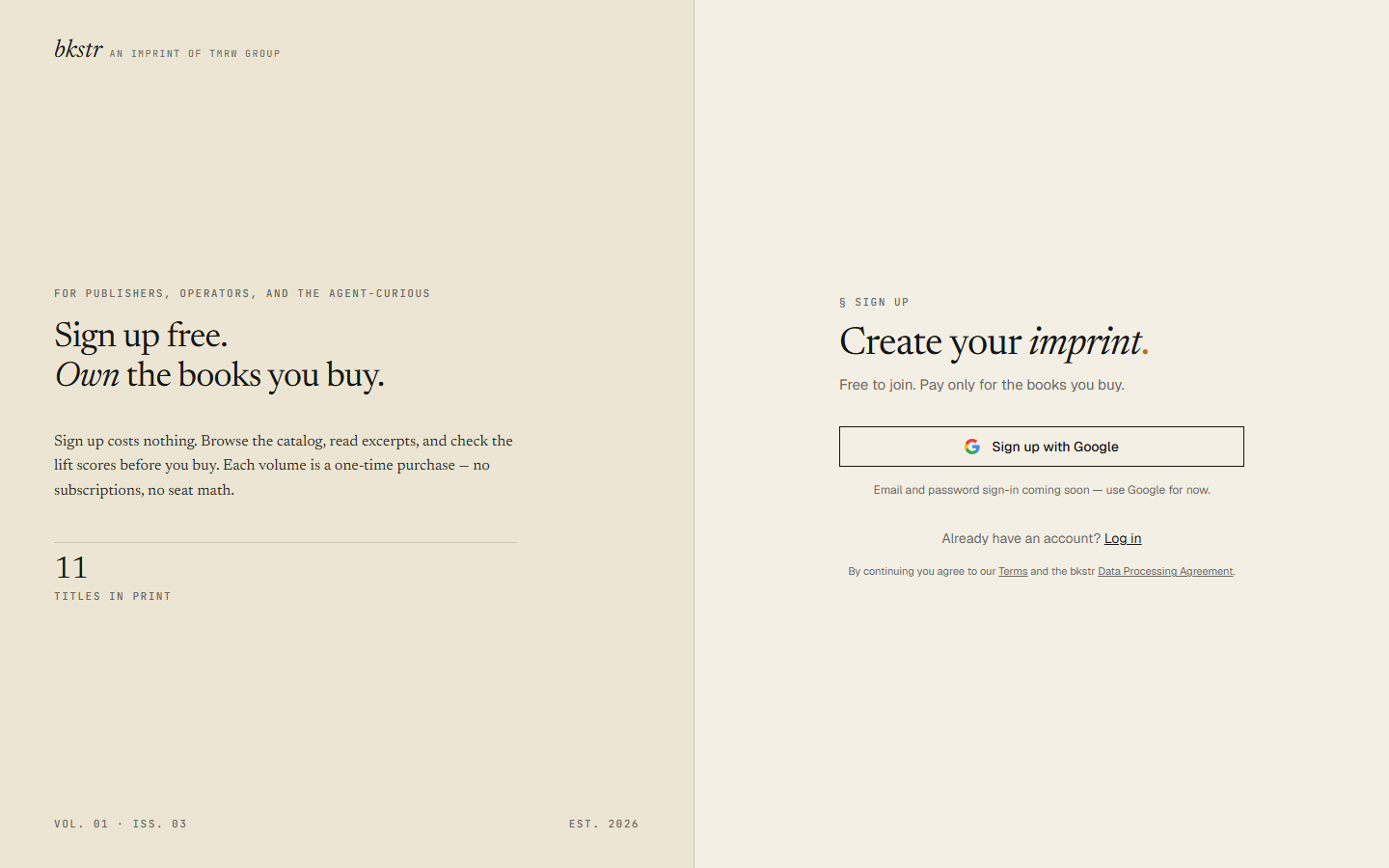
Go to /signup and choose Continue with Google. Signing in for the first time creates your user account and a subscriber profile together. You do not enter a payment card to sign up — bkstr charges per item when you buy, never as a subscription.
Every account starts as a subscriber: you can buy and use books and skills. Publisher and admin roles are assigned by the operator. If you only buy and install, subscriber is your role, and this track is written for you.
Your account starts with nothing owned and no API keys. You add owned items below; API keys come in Installing.
Browse the catalog
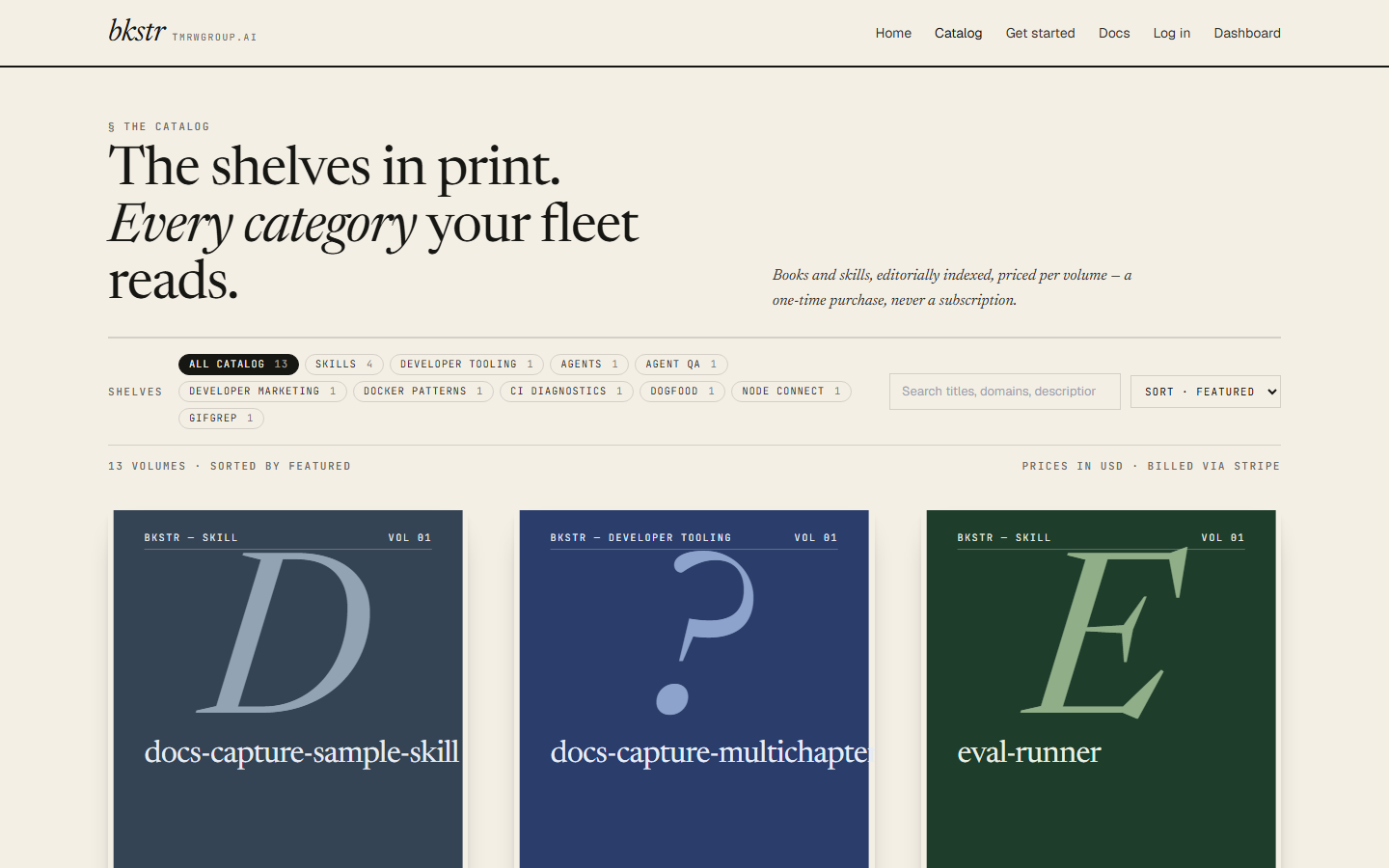
The catalog lives at /storefront. Books and skills share one grid — each item shows a cover, title, one-line description, publisher, and price.
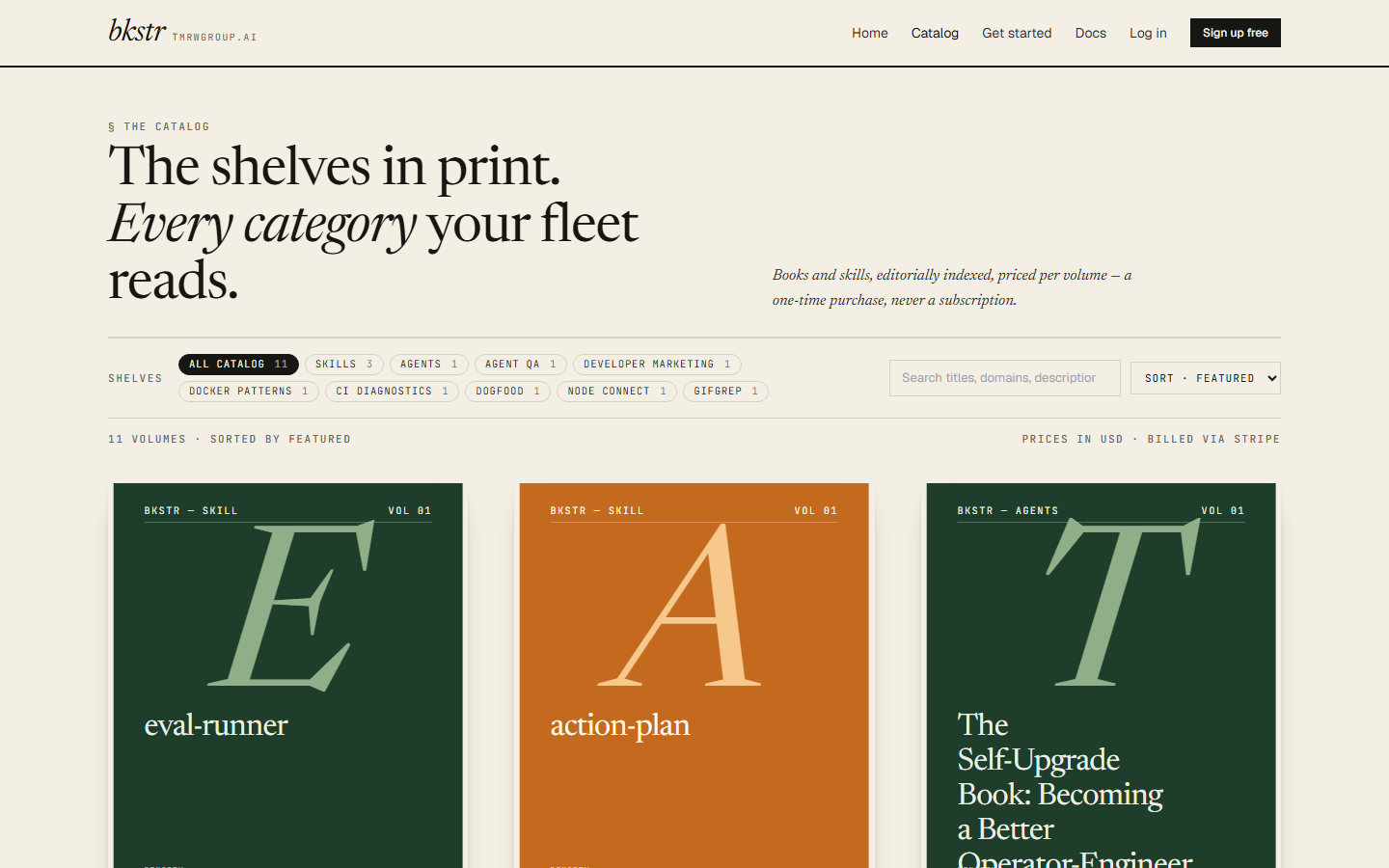
You can browse without signing in. The filter pills scope the grid: Skills narrows to skills, and each domain pill — a free-text category a publisher tags a book with — narrows to books in that domain. Sort by price ascending or descending. The search box matches what you type against titles, domains, and descriptions; it is a substring match over the items already loaded, not a full catalog search.
Signed in, the same grid also reflects what you already own.
Select any item to open its detail page at /storefront/<slug>. The detail page carries the full description, a price / version / file-count strip, and the file or chapter manifest — the list of what is in the bundle, with contents held back until purchase.
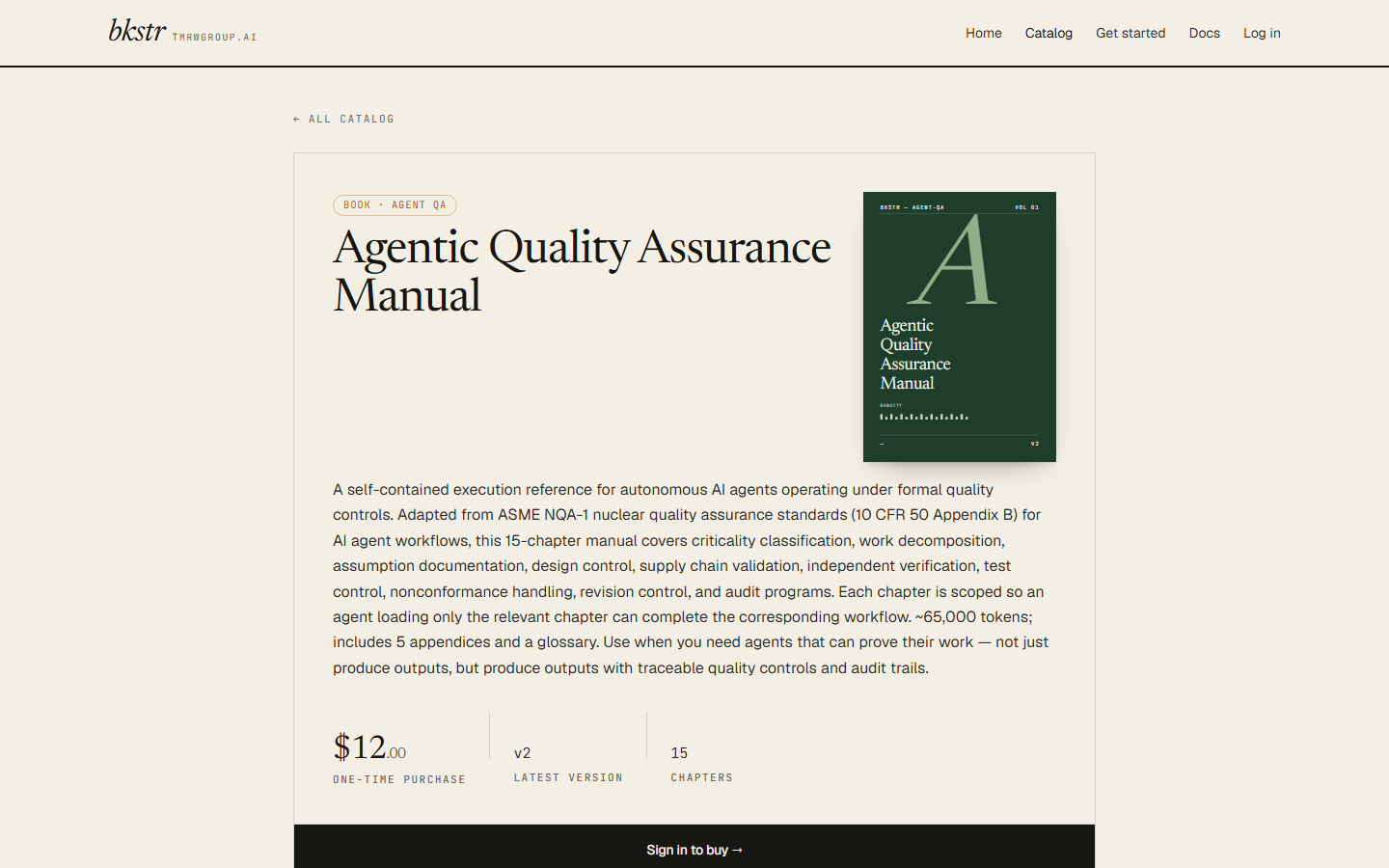
Free items have no buy step. An item priced at $0 is installable by anyone without an account — there is no checkout, and no owned state for it. To install a free item, skip to Installing. The rest of this page covers paid items.
Buy a book or skill
Open the detail page for a paid item while signed in. If you do not own it yet, the page shows a Buy button with the price.
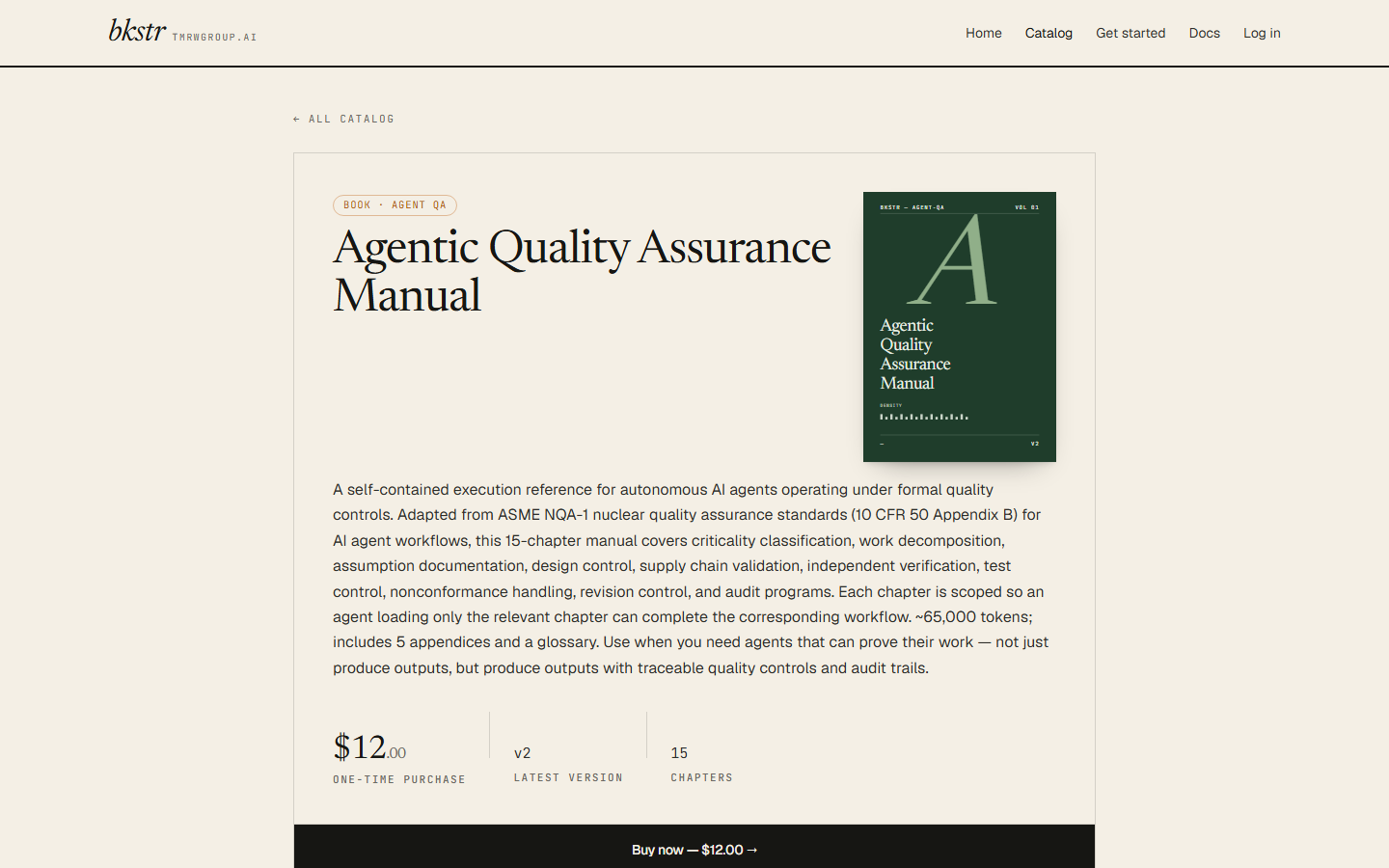
Choosing Buy sends you to Stripe's hosted checkout. bkstr resolves the price on the server — the amount is never set by the page you came from.
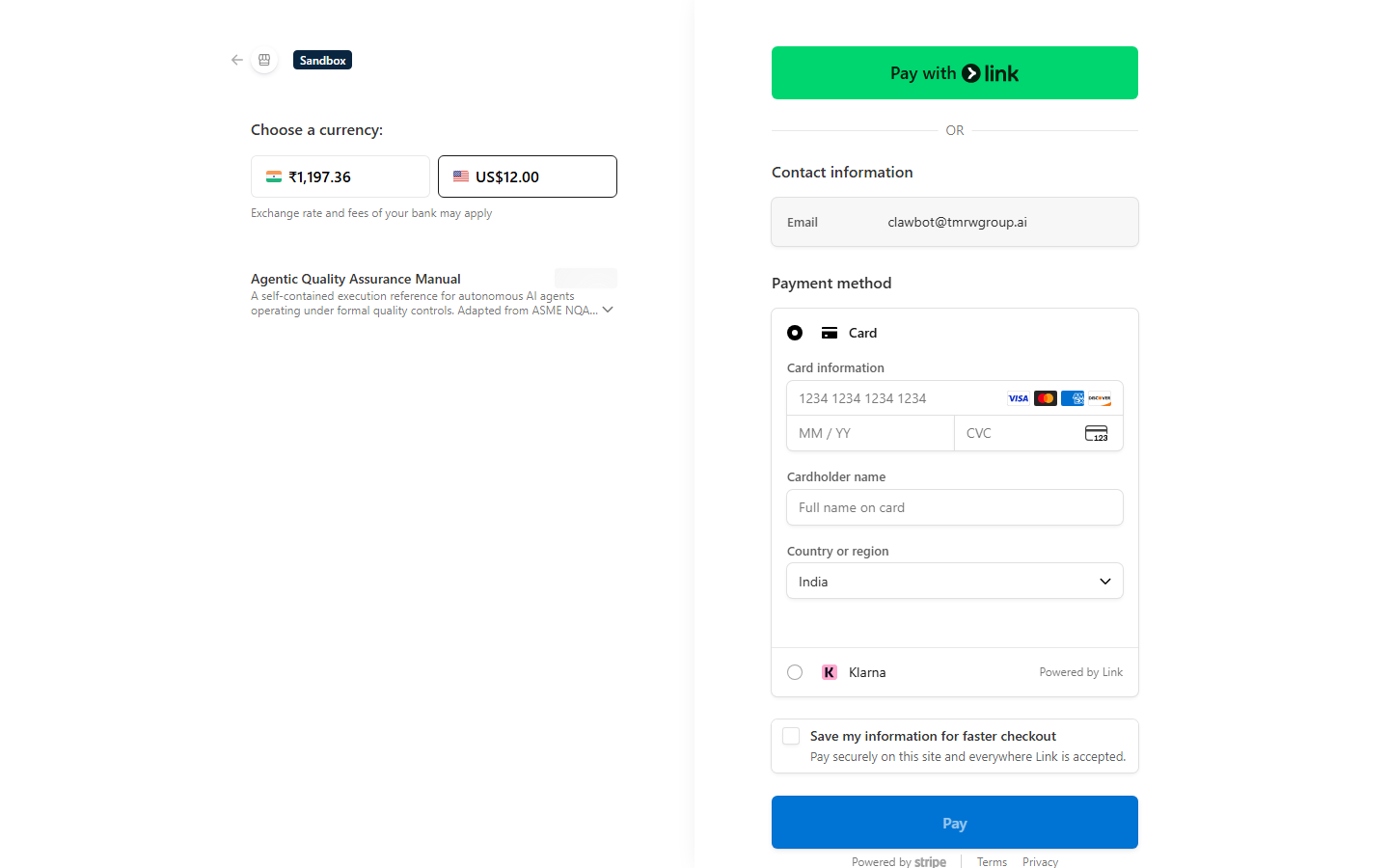
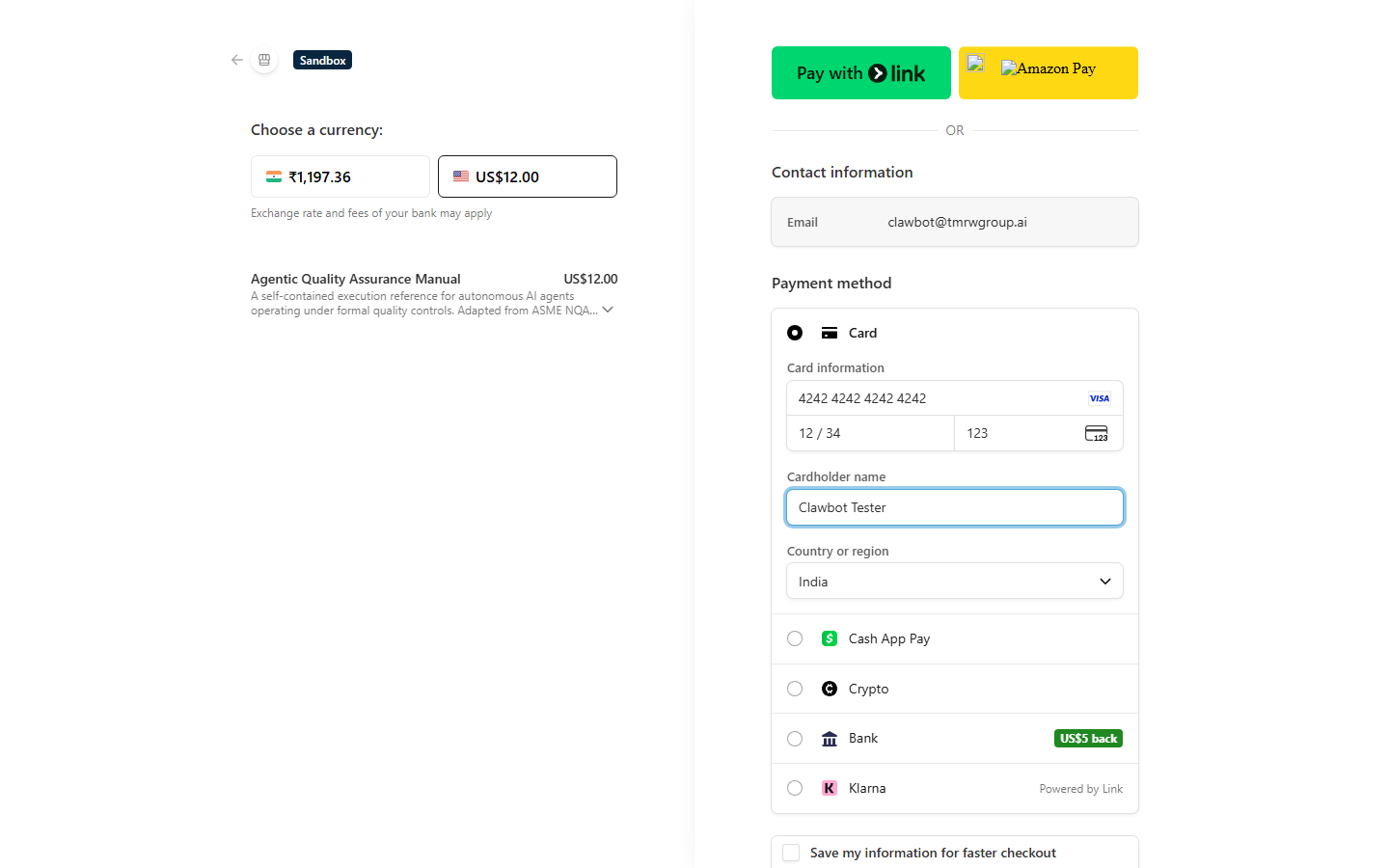
Test mode during beta. Checkout currently runs in Stripe test mode. Use the test card
4242 4242 4242 4242with any future expiry and any CVC — no real charge is made. Live billing is coming; until then, treat every purchase as a test transaction.
Enter the card details and pay.
When the payment clears, Stripe returns you to a confirmation page on bkstr.
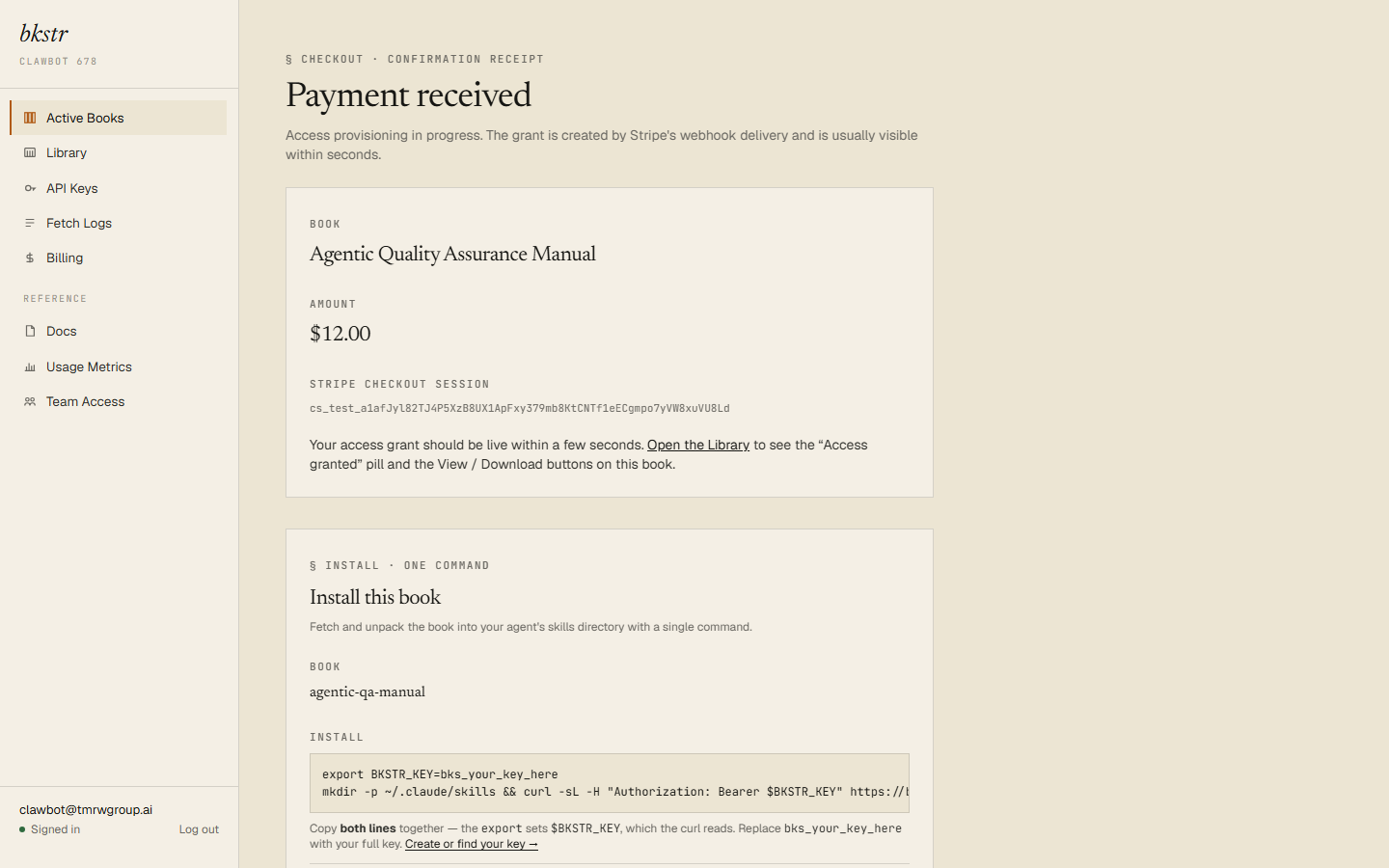
The confirmation page does not grant access itself. Access arrives a moment later, when Stripe's webhook reaches bkstr and writes your access grant — in practice, seconds. Once it lands, the item is yours.
After you buy
A purchase writes a permanent access grant tied to your Stripe payment. It does not expire, and re-fetching the item never costs anything more. A grant is removed only if an admin revokes it — for example, to reverse an accidental purchase.
From here:
- Install it — fetch the files onto disk for your agent. See Installing.
- Review what you own — the Library lists every owned item with its install command. See Your library.
- Check a purchase — every payment is listed with its Stripe link. See Billing.